How to Change Aspect Ratio in CapCut for TikTok, Reels, and YouTube
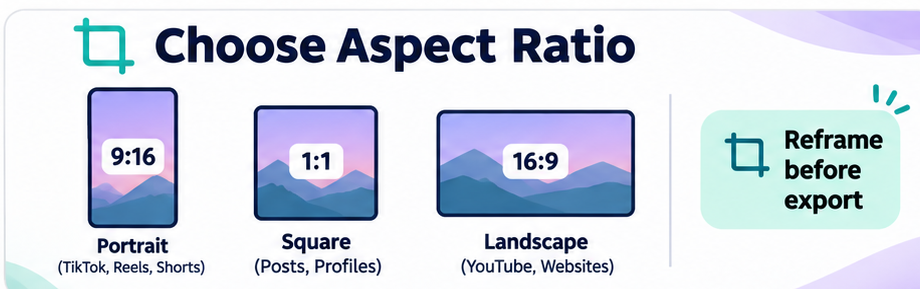
How to change aspect ratio in CapCut: open a project, locate Aspect ratio, Ratio, Format or the canvas sizing control, then select the shape you need—commonly 9:16, 16:9 or 1:1. After changing the canvas, resize and reposition the footage so the subject and text remain visible.
Changing the aspect ratio changes the shape of the video frame, not just its export resolution. This guide covers mobile, desktop and common social formats, including how to avoid unwanted cropping, black bars and blurry zoomed footage. If you’re starting from scratch, our CapCut beginner tutorial explains import, timeline and export basics.
Which CapCut Aspect Ratio Should You Use?
- 9:16 (vertical): the standard tall-video starting point for TikTok, Instagram Reels and YouTube Shorts.
- 16:9 (landscape): a common wide format for regular YouTube videos, presentations and desktop playback.
- 1:1 (square): useful for some social feed posts and square visual designs.
- 4:5: a taller feed-friendly shape where the app and destination support it.
These are editing choices rather than fixed promises about how every platform displays uploaded videos. Check current platform previews, safe zones and upload specifications before finalizing a client project.
Change Aspect Ratio in CapCut on iPhone or Android
- Open CapCut and choose an existing project or start a new one.
- Look for a Ratio, Format or Aspect ratio control near the bottom toolbar. If you have selected a clip, tap away from it to reveal canvas-level controls.
- Choose 9:16 for vertical short-form video, 16:9 for landscape, or 1:1 for a square canvas.
- Tap the video preview and pinch to resize or drag it to reposition the subject within the new frame.
- Play the entire project, especially scenes with titles or overlays, then export and check the saved file.
The ratio menu can shift between app versions. Selecting a clip may hide the canvas controls; tapping outside the clip often restores them. If changing the ratio creates empty bars, decide whether to preserve the entire image or fill the canvas by cropping.
Change Aspect Ratio in CapCut on Windows or Mac
- Open the desktop editor and create or open the project.
- Find the ratio or canvas format setting near the preview or project controls.
- Choose the intended frame shape, such as 9:16, 16:9 or 1:1.
- Select each important clip and check its scale and position. A clip shot vertically may need a blurred background rather than an aggressive crop on a landscape canvas.
- Review transitions, overlays and captions, then export to your intended dimensions.
Changing the project ratio late can make text and layered elements appear in the wrong positions. If you use multiple text overlays, review our CapCut text tutorial and guide to CapCut overlays before final export.
How to Convert 16:9 Video to 9:16 for Shorts or Reels
A landscape clip is much wider than a vertical canvas. Filling 9:16 normally requires cropping the left and right edges. The key is to protect the subject, not to stretch the picture. Choose the vertical ratio, then move and scale the footage so the main action stays centered. Repeat for every shot where the subject moves.
If cropping would cut off an important person or product, consider placing the full landscape clip inside a vertical canvas with a simple colored or blurred background above and below. It preserves more detail, though the image itself occupies less of the screen. Avoid enlarging low-resolution footage unnecessarily.
How to Convert 9:16 Video to 16:9
When a tall phone clip is placed in a wide frame, space often appears at the sides. You can crop the top and bottom by enlarging the video, but this may cut off faces or captions. Alternatively, keep the full-height clip centered and fill the sides with a matching background. Don’t distort the subject by stretching it horizontally.
Aspect Ratio vs Resolution: What Is the Difference?
Aspect ratio describes the shape, such as 9:16. Resolution is the pixel count, such as 1080 × 1920. You can have a 9:16 canvas at more than one resolution. Exporting at a high setting will not restore detail that was already missing from a blurry source recording.
For example, both 720 × 1280 and 1080 × 1920 are 9:16 shapes, but the second contains more pixels. If a video appears blurry after export, start by checking the original file, cropping level and output settings—not just the aspect-ratio button.
Fix Black Bars, Cut-Off Faces and Missing Captions
Black or blank borders appear
Your clip shape does not fill the chosen canvas. Reposition it, use a subtle background, or crop deliberately. Don’t stretch a person out of proportion just to fill the space.
The subject is cut off
Reduce Scale and shift the position. For interviews and tutorials, leaving some margin around the face, hands and screen controls helps keep the composition understandable.
Text disappears behind app buttons
Move titles and captions away from the outer edges because platform interface elements may overlay the video. Our CapCut auto-captions guide covers subtitle editing and review.
The export has the wrong shape
Verify the canvas ratio before exporting and watch the final file in a separate player. If you used an old project preset, consider creating a fresh project with the correct ratio and bringing in the existing clips.
Editing Tips for Cleaner Social Videos
- Set the aspect ratio before adding many text and sticker layers.
- Check subject placement separately for each clip rather than applying one global crop blindly.
- Keep important text within a comfortable inner margin.
- Avoid zooming low-resolution footage so far that it becomes soft.
- Use a separate export project when one video needs both vertical and landscape versions.
Frequently Asked Questions
Is 9:16 good for TikTok and Reels?
Yes, 9:16 is a common vertical-video choice for TikTok, Instagram Reels and YouTube Shorts.
Can I change the ratio after editing?
Yes, but recheck cropping, text, overlays and transitions because their placement can change.
Why are there black bars after changing the ratio?
The original clip and chosen canvas have different shapes; use a background or carefully adjust scale and position.
Does changing aspect ratio improve quality?
No. It changes the frame shape. Visual quality depends on your source, scaling and export settings.
Export Checklist
Before uploading, inspect the full video on a phone-sized preview and in the intended orientation. For a mobile portrait-to-landscape example, refer to CapCut’s official resizing tutorial.