How to Reverse a Video in CapCut on Mobile and PC
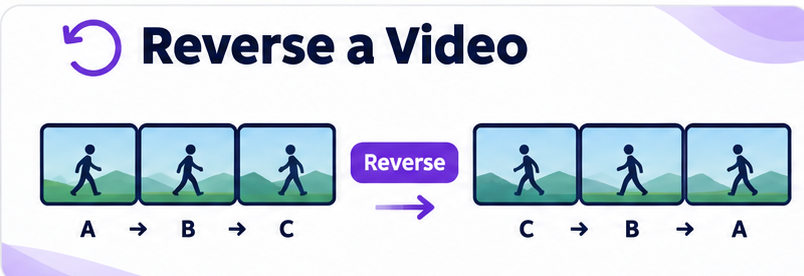
How to reverse a video in CapCut: import the footage, select the clip on the timeline, choose Reverse, let the processing complete, and preview the new playback order. On mobile, Reverse is usually inside the editing toolbar; on desktop it is available for a selected timeline clip.
Reversing changes the order of frames: a falling object can appear to rise, and a jump can run backward. It is not the same as flipping a video horizontally. This guide explains mobile and PC steps, reversing only a short part, audio choices and practical fixes when the tool does not work. First-time users can follow our CapCut beginner guide for basic importing and exporting.
How to Reverse a Video in CapCut on iPhone or Android
- Open CapCut, select New project, and import the video from your phone.
- Tap the video on the timeline so clip-specific options appear. If necessary tap Edit and scroll across the toolbar.
- Select Reverse and allow the app time to process the video. Larger and higher-resolution files may take longer.
- Play the reversed clip from the beginning. Confirm that the motion now travels backward and check for unwanted audio.
- Use the export control to save the result and watch the saved video.
If Reverse is greyed out or missing, confirm you selected a normal video clip rather than a text element, still image or audio. Some templates and specific modes restrict editing controls. Avoid clearing app data as a troubleshooting shortcut because you may lose local drafts.
How to Reverse a Video in CapCut PC
- Open CapCut Desktop and create or open a project.
- Import your recording and drag it onto the timeline.
- Select the clip and find Reverse in the toolbar near the timeline controls.
- Apply Reverse and wait for processing to finish before making another change.
- Preview the result, adjust the sequence and export a test file.
CapCut desktop versions may place the Reverse control differently. If the button is hidden, review the clip selection and toolbar instead of assuming the feature was removed. You can combine the reversed section with manual transitions; our CapCut overlays guide covers layer-based editing, while the CapCut features overview explains related editing tools.
Reverse Only One Part of a Video
Often only the action itself should play backward. For example, to make a tossed object return to someone’s hand, split the video at the start and end of the throw. Select that short segment, apply Reverse, and leave the introduction and reaction clips in normal order. This also reduces processing time.
- Locate the moment to reverse and split just before it.
- Split again after the action so the chosen section becomes its own clip.
- Select only that segment and apply Reverse.
- Arrange the forward and reverse clips to avoid an awkward duplicated moment.
- Watch both cuts and adjust audio before exporting.
What Happens to Audio When You Reverse a Video?
Depending on the editing mode and app version, audio tied to a reversed clip can change or behave differently from detached sound. Backward speech may be hard to understand. A reliable approach is to mute or detach the original audio for the reversed section, then place music, narration or a deliberate effect on a separate track.
Keep voice-over at normal speed if it explains the effect. Also check for audio clicks at the start and end of the reversed segment. Our guide to adding music in CapCut covers music tracks, while our auto-captions tutorial explains correcting subtitle timing after edits.
Reverse vs Speed vs Mirror: What Is the Difference?
- Reverse: changes frame order so the recorded motion plays backward.
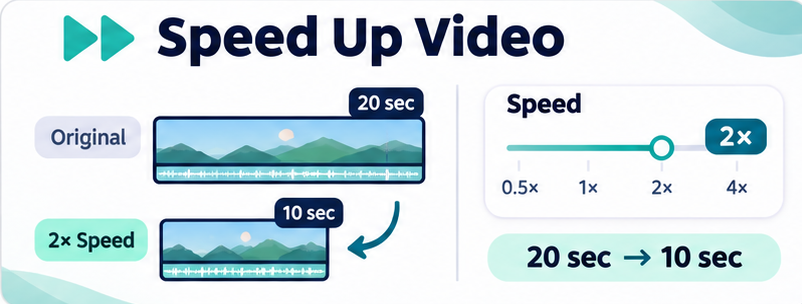
- Speed: makes the same sequence play faster or slower without necessarily changing frame order.
- Mirror/Flip: changes left and right orientation but time still runs forward.
- Reverse plus speed: can create a faster backward action; test in short segments and check processing.
If your goal is dramatic timing rather than backwards motion, see our speed-ramp template guide or the auto-velocity tutorial instead.
Why Is Reverse Not Working in CapCut?
The processing bar gets stuck
Wait a reasonable time for a large file, then save the project before troubleshooting. Close memory-heavy apps, check available storage and try a shorter clip. Restart the editor only after protecting your work.
Reverse is unavailable on a particular clip
Confirm you selected a video segment. Remove complex effects temporarily, then retry on a duplicated or freshly imported clip. CapCut’s own troubleshooting documentation notes that heavy effects, speed adjustments and incompatible formats can interfere.
The export looks different from the preview
Export only a short sample, verify the selected resolution and frame rate, then re-import the file if necessary to compare. Avoid assuming that a successful preview guarantees the full file rendered correctly.
The video is now too long or too short
Reverse by itself changes playback direction rather than intended duration. If timing changed too, review any Speed edits and transitions you applied before or afterward. Select the segment carefully.
Three Easy Reverse Video Ideas
- Jump and return: a short backward jump followed by the forward landing.
- Object assembly: film items falling apart, then reverse so they appear to assemble.
- Splash reversal: a splash moves back toward the source; mute the original audio and add music if needed.
Frequently Asked Questions
Can I reverse a video on CapCut free?
Reverse is a standard editing feature described in CapCut’s mobile and desktop tutorials, though feature availability can vary by version and mode.
Can I reverse just one clip in a longer project?
Yes. Split the segment you want and apply Reverse only to that selected part.
Does reversing a video mean mirroring it?
No. Reverse changes time order; mirror changes the left-right appearance.
What if CapCut freezes when reversing?
Try a shorter clip with fewer effects, free up storage or memory, then update the editor. Protect your unsynced draft before reinstalling.
Final Review
Check the motion at the start and end of the effect, inspect audio joins and watch the saved export. For the current location of CapCut’s Reverse controls, see its official reverse-video tutorial.