How to Post on CapCut and Share Your Videos or Templates
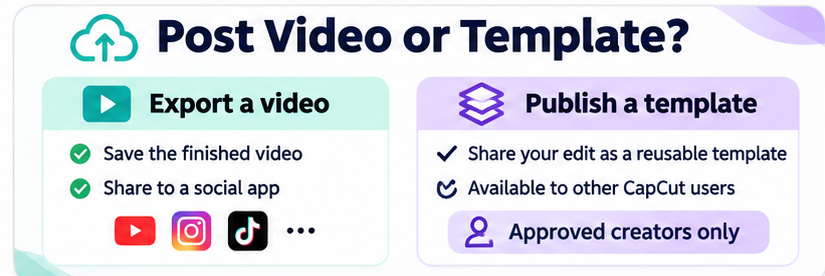
How to post on CapCut depends on what you mean by post. You can export a finished video and share it to a social platform such as TikTok or Instagram. Publishing an editable CapCut template inside CapCut is a different feature and generally requires approval as a template creator. Not every account has the Publish as Template option.
This guide walks through both workflows without promising an option that your account may not have. If you have not finished editing yet, start with our CapCut beginner editing tutorial and check your final video before sharing.
How to Post a Finished Video from CapCut
- Open your existing project and play it from beginning to end. Check titles, captions, audio rights and the ending.
- Tap or click Export. Choose an available resolution and frame rate suitable for the destination.
- Save the finished file to your device, or use a share option when your app and region support direct sharing.
- In TikTok, Instagram, YouTube or your chosen platform, upload the exported file and add your caption, description and privacy settings.
- Review the uploaded post to confirm correct framing, sound and subtitles.
Exporting a video does not automatically make it a reusable CapCut template. The finished video is a normal media file. For editing and export troubleshooting, our CapCut features guide introduces common tools, and auto captions in CapCut helps you prepare readable subtitles.
How to Publish a CapCut Template
Template publishing is a creator-only workflow. CapCut’s help documentation says you need approval and access to the Creator Center. If you see a Publish as Template option, you may have permission to submit a template; if not, that does not mean the export function is broken.
- Open the CapCut mobile app and check your profile or Me section for a Creator Center entry or relevant creator status.
- If approved, create a new project or open a suitable original edit that uses assets you have rights to share.
- Finish the timing, effects, text placement and any replaceable media elements; test the intended template experience.
- Use Post and select Publish as Template when that option is available.
- Review the title, preview, music licensing and any other required information before submission.
Only proceed with template publication if your account’s interface and permissions support it. Availability differs by region, version and creator approval. Our CapCut Creator Program guide explains creator eligibility in more detail, and CapCut template collection shows what finished templates look like.
Why Can’t I Post a Template on CapCut?
- Creator approval is missing. A regular editing account is not automatically authorized to publish templates.
- You are on desktop or web. CapCut says template publishing may be limited or unavailable there; mobile is generally the supported route for approved creators.
- Region or account eligibility differs. Some publishing tools may not appear in certain markets or accounts.
- Media rights or policy issues. Licensed audio and imported assets may not be cleared for redistribution in a public template.
- App version or connectivity. Keep CapCut updated and test a reliable connection, but don’t assume a missing creator permission can be fixed by reinstalling.
If your template tools are missing or stuck loading, compare our CapCut templates not showing tutorial and template loading guide. These help diagnose display or download problems; they cannot grant creator approval.
Posting from CapCut on iPhone vs PC
Mobile: You can usually export edited videos and share the finished files, with template posting available to eligible creator accounts. PC: You can edit and export videos, but template publishing may require you to finish the submission from the mobile app. Web: Export or download options depend on the web editor; don’t count on direct template publishing.
The important distinction is between a publicly shared video and a reusable project structure. A finished MP4 can be posted on a social network by almost anyone with an account there, but a template requires specific creator permissions.
Best Export Settings Before Posting
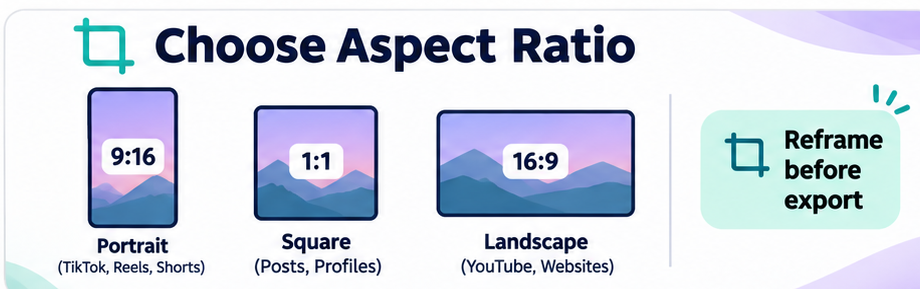
- Vertical short-form: 9:16 is a common starting aspect ratio for TikTok, Reels and Shorts.
- Landscape video: 16:9 is often appropriate for standard YouTube playback.
- Captions: keep text inside safe areas; platform interface overlays can obscure the edges.
- Resolution: 1080p is a reasonable starting option if the source is clear and the platform supports it.
- Sound: verify usage rights and listen to the uploaded result.
If you need to style the video before export, our text-editing guide and music in CapCut tutorial cover common finishing steps.
Before You Share: Professional Checklist
- Choose a clear filename and informative post caption.
- Avoid uploading copyrighted music or footage without permission.
- Review video privacy and audience settings on the platform receiving the export.
- Test whether captions or visual effects are cropped in the destination’s preview.
- Keep your original project and source files until the upload and playback have been verified.
Mistakes to Avoid
Don’t label a regular exported video as a public CapCut template. Don’t promise a creator-only Post button appears for every person. Don’t delete a project just because an upload failed, and don’t assume publishing inside one social app makes the media automatically available everywhere else.
Frequently Asked Questions
Can everyone post CapCut templates?
No. CapCut limits template publication to approved creators with relevant creator permissions.
Can I share a CapCut video without becoming a creator?
Yes. Export a finished video and upload the file to a social platform, subject to that platform’s account rules.
Why can’t I see Publish as Template?
You may lack creator approval, be using an unsupported platform or be in a region where the option is unavailable.
Can I post a template on CapCut PC?
CapCut’s help guidance says desktop and web may have limited template publishing, and the mobile app is often needed to complete the process.
Official Publishing Rules
For current creator requirements, check CapCut’s official template-posting help. This article intentionally separates video sharing from template publishing because the requirements are different.