How to Speed Up a Video in CapCut Without Ruining Audio
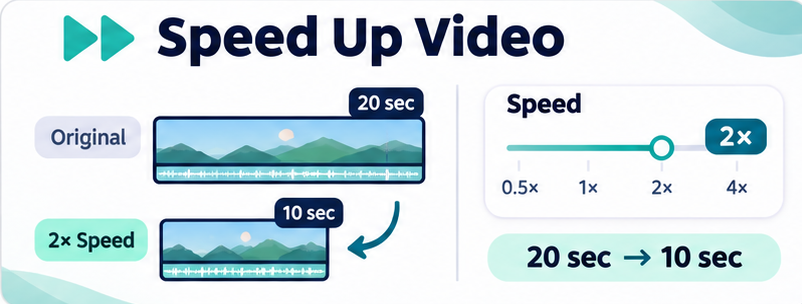
How to speed up a video in CapCut: import your clip, select it on the timeline, open Speed, choose Normal (or Standard on some versions), and raise the playback rate above 1×. Preview the result, check the sound, and export. A short practical test at 1.5× or 2× is usually easier to judge than an extreme setting.
Speed changes can make tutorials, travel clips and repeated actions easier to watch, but they also shorten the clip and may make spoken audio unnatural. This guide covers the mobile app and desktop editor, how to speed up only part of a clip, and how to avoid audio, caption and timing mistakes. For a first project, start with our complete beginner’s CapCut editing guide.
Speed Up a Video in CapCut on iPhone or Android
- Open CapCut and tap New project. Select your video and add it to the timeline.
- Tap the actual video clip so its editing controls appear. Scroll the lower toolbar until you find Speed.
- Choose Normal. Move the slider from 1× to 1.5× or 2×; the preview duration will shrink.
- Play the beginning, middle and end of the clip. If speech sounds strange, use the audio options described below before exporting.
- Tap the export control, check the resolution and frame-rate options available on your device, and watch the saved file after export.
Menu names and locations can differ between app versions. If Speed is missing, make sure the clip—not music, a sticker or the blank canvas—is selected. You may need to tap Edit or swipe the toolbar to reveal it.
Speed Up a Video in CapCut on Windows or Mac
- Create a project, choose Import, and place the source video on the desktop timeline.
- Select the timeline clip and open the Speed controls in the editing panel.
- Use the regular/standard speed slider for one constant rate, such as 2×. Choose a speed curve only if you want changes within the same clip.
- Preview the edit and check for timing gaps where the shortened clip no longer aligns with the following scene.
- Select Export, choose a suitable output resolution and save the finished video.
A 20-second clip at 2× takes about 10 seconds. A 30-second clip at 1.5× takes about 20 seconds. Faster playback affects duration; it does not improve the source resolution or automatically create smoother footage.
How to Speed Up Only One Part of a Video
To preserve the beginning or the explanation, split around the section you want to accelerate. Position the playhead where the repetitive section starts, choose Split, then split again at its end. Select just the middle segment and change its speed. Leave the surrounding clips at 1× for natural pacing.
For a more gradual result, use Speed → Curve and choose a preset or custom curve. Curve controls let you move between slow and fast moments inside one clip. They serve a different purpose than constant 2× speed. Our speed-ramp CapCut guide and auto velocity tutorial explain the effect-focused approaches; this article focuses on precise manual editing.
How to Speed Up Video Without Ruining Audio
- Keep narration understandable. Split the talking section out and keep it at 1×, or remove its original audio and record a new voice-over at normal pace.
- Check pitch and sound. A pitch-preservation setting may be available in some versions, but it cannot guarantee intelligible speech at very high speeds.
- Use separate music carefully. A soundtrack on its own track may not automatically shorten with the video. Trim or reposition it, then check the ending.
- Recheck captions. Speed changes can shift the spoken words relative to subtitles. Our CapCut auto-captions guide explains how to review and correct timing.
- Listen to the exported file. The editor preview alone is not a final audio-quality test.
Which Speed Should You Choose?
- 1.25×–1.5×: subtle pacing for slow explanations or walking footage, provided viewers can still follow.
- 2×: compressing simple actions such as setup or repetitive movements.
- 4× or more: visually repetitive tasks when no important speech or text needs to be understood.
- Speed curve: varying pace to emphasize a moment rather than making the whole clip faster.
Common Problems and Fixes
The Speed option is missing
Confirm that a video segment is selected. Audio-only clips, templates or different editing modes may offer different controls. Check the toolbar and app version before reinstalling anything.
The accelerated clip looks jumpy
Fast movement can appear abrupt, especially in low-frame-rate or shaky footage. Try a lower speed, shorten the effect, and preview the actual export. Speeding up a video does not add detail to frames.
There is a gap after the clip
The faster segment is shorter. Move the following shot left, adjust the transition, or add a deliberate cut. Also check titles, overlays and captions that used to end with the original clip.
The soundtrack ends too early
Check whether the soundtrack was linked to the clip or placed on a separate audio track. Trim, extend using approved audio, or reposition music to fit the new total duration. See how to add music in CapCut for more audio guidance.
Frequently Asked Questions
Does CapCut allow 2× speed?
Yes. Select a video clip and increase its normal playback speed to 2× in the Speed controls, if supported by your editing mode.
Does increasing speed also speed up sound?
The original clip’s audio may be affected. Preview it and decide whether to preserve pitch, mute, separate, or replace the audio.
Can I speed up just one clip?
Yes. Split the section you want to accelerate, then select only that segment before adjusting speed.
Can I make speed ramps instead of constant speed?
Yes. Use a speed curve to vary playback rates inside a clip, rather than applying one normal rate.
Final Export Checklist
- The important action remains visible at the faster pace.
- Speech is understandable or replaced with deliberate audio.
- Music and captions still align with the edited clip.
- No unintended blank space remains after shortening the clip.
- The saved export has been watched from start to finish.
For CapCut’s current control labels and examples, consult the official CapCut speed tutorial. This guide is written for the common mobile and desktop workflows; interface labels can vary by version.