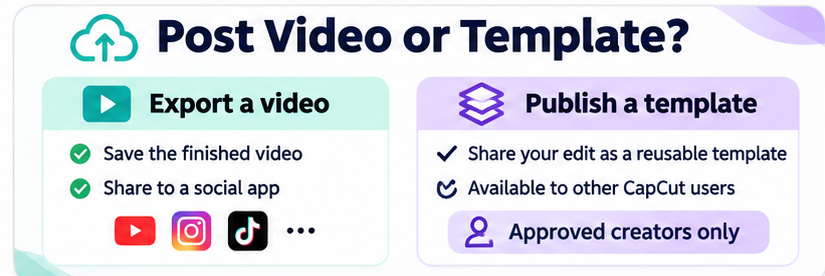
Is CapCut Safe for Kids? Age Limits and Parent Safety Tips (2026)
Is CapCut safe for kids? CapCut can help teenagers learn video editing, storytelling and digital creativity, but it is not designed for children of every age. Parents should understand the minimum-age rules, what the app does with imported videos, and what happens when a child shares an edit or template. A creative tool can be useful without being completely risk-free.
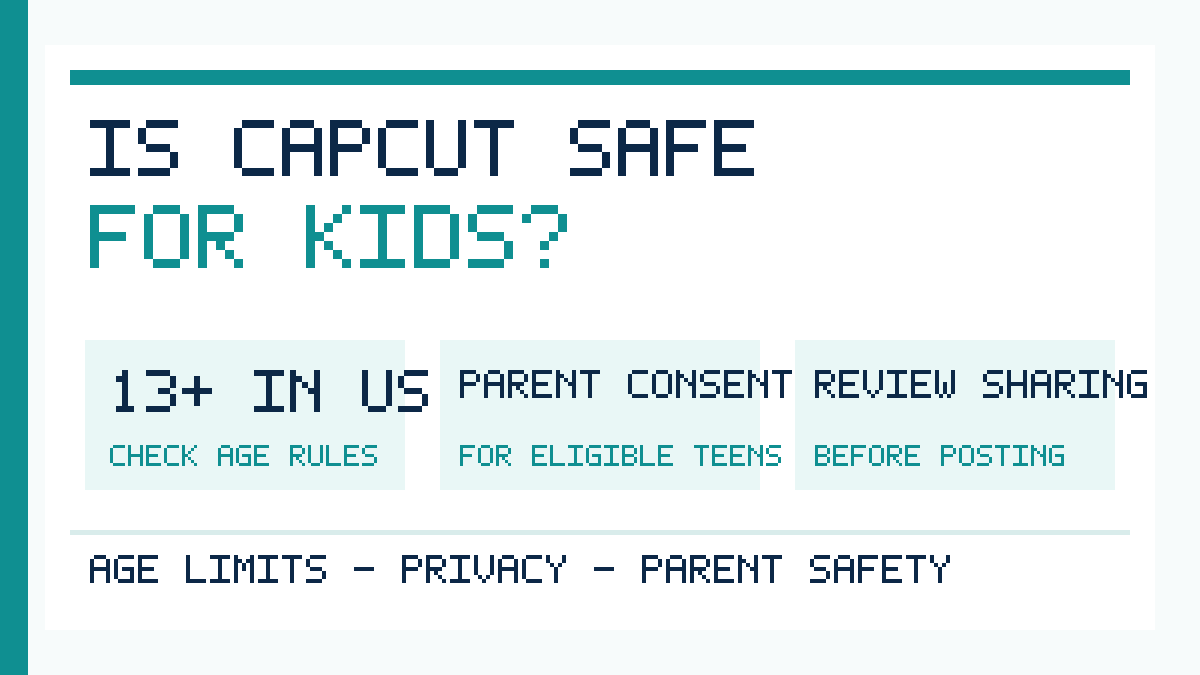
The most important starting point is age eligibility. CapCut’s US Terms of Service, updated April 15, 2026, say its services are intended for people 13 and older. Eligible users under 18, or under their local age of majority, need parental or guardian consent. Other countries may have additional age restrictions. This guide focuses on practical decisions for families, not a blanket claim that CapCut is child-safe.
What Is the Minimum Age for CapCut?
In the United States, CapCut’s published terms set a minimum age of 13. A 12-year-old does not become eligible merely because a parent offers permission. For an eligible 13–17-year-old, a parent or guardian must consent to use under the US terms. Parents should also check whether the local rules for their country are stricter.
The age threshold is a condition for using the service, not a guarantee that every feature or piece of content is suitable for all teenagers. CapCut’s Pippit-related services have different age expectations, and availability of features can vary by region or platform. Check the terms for the specific product your child intends to use.
Is CapCut Appropriate for a 13-Year-Old?
It depends on the teen’s maturity, what they are editing and whether an adult is involved. Basic trimming, adding text, arranging clips and exporting a family video are different activities from uploading footage to cloud services, using AI effects on faces, or publishing public templates.
A reasonable starting arrangement is supervised editing of non-sensitive footage, with sharing turned into a separate decision. A parent can help choose footage that does not identify school locations, addresses or private routines. The goal is to build digital judgment rather than assume the app makes every choice automatically.
What Privacy Risks Should Parents Know About?
CapCut’s US privacy policy describes processing of account, device, usage and user-content information. It says some material may be collected through pre-uploading during creation or import, even before a user saves or publishes a project. That does not mean an unpublished clip is necessarily public; it does mean a parent should not assume that all editing stays solely on the phone.
- Personal details: names, school uniforms, street signs and visible home addresses can appear in video backgrounds.
- Other children’s privacy: a school or party clip may include classmates whose families did not agree to online processing or publication.
- Cloud and AI processing: some features may send content or prompts to a service for processing.
- Account and device data: an app can collect technical and activity information apart from the videos themselves.
- Sharing: an exported video, a shared project and a published template are different actions with different audiences.
For a broader explanation of how CapCut handles personal data, read our CapCut privacy and safety guide. Families should review the applicable regional privacy policy together, especially before a teenager uploads images of other people.
How to Set Up CapCut More Safely for a Teen
There is no single setting that makes every feature risk-free. Instead, use a simple family workflow and revisit it as the teen learns more advanced tools.
Step 1: Check eligibility and discuss consent
Confirm the teen meets the minimum age where they live. Read the terms together, discuss why permission matters, and agree which activities are allowed. Do not enter a false birth date to bypass an age restriction.
Step 2: Install the genuine application
Use an official app store or CapCut’s authorized website. Avoid modified APKs, cracked Pro packages and links sent by strangers. Keep the operating system and app updated so known defects can be corrected.
Step 3: Limit photo, camera and microphone access
On an iPhone, review CapCut under Settings or the relevant Privacy & Security permissions. On Android, look under Settings → Apps → CapCut → Permissions; menu names vary. Where supported, grant access to selected photos instead of an entire library. Turn off microphone or camera access when the editing task does not require it.
Step 4: Choose safe footage before importing
Use a test clip of a pet, a landscape or a simple craft project. Remove location clues, identifying school details and documents visible in the background. If the project includes friends or classmates, ask their families before uploading or sharing. This protects other people as well as the teen.
Step 5: Review every export before posting
Watch the complete edit together, including captions, audio and the final frame. Check for names, location information, accidental background conversations and inappropriate music or language. Exporting to the device does not automatically mean publishing to a social network. Our guide to posting CapCut videos and templates explains why these are separate actions.
Should Parents Allow CapCut AI Features?
AI captions, face effects, automated edits and other tools can be convenient, but the input may include a child’s voice, face, location or personal information. Parents should ask what data a feature needs, whether the result will be shared, and whether an alternative can achieve the same goal without uploading identifying content.
For a first editing project, basic cutting, text and transitions are often sufficient. The CapCut beginner editing tutorial provides a useful starting point. Do not assume a feature is processed offline unless the app explicitly confirms it.
What About Public Templates and Social Sharing?
CapCut can be used to prepare content that is later shared elsewhere. Public posts can travel beyond the intended audience through downloads, screenshots and reposts. A teen should not share a video merely because a template makes it easy to export or publish.
- Agree in advance whether posting is allowed and which accounts or audiences are acceptable.
- Keep family footage, private school events and sensitive conversations out of public templates.
- Do not reveal real-time location, regular travel routes or school schedules.
- Review music, captions and any visible names before posting.
- Remember that deleting a post may not remove copies other people have saved.
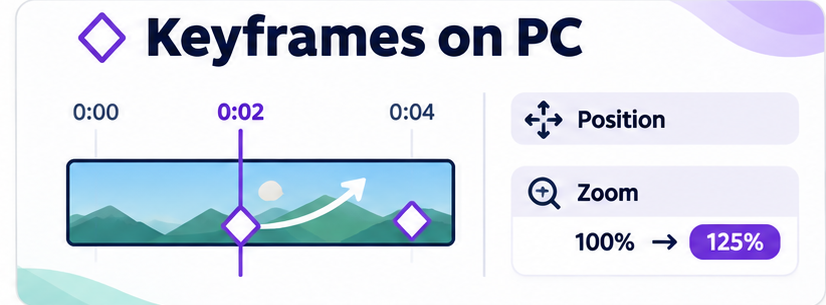
If a teen wants to learn editing without immediately publishing, work together on local practice projects. The CapCut keyframes tutorial shows a creative skill that can be practiced with simple non-identifying graphics.
Can Parents Control Screen Time and Spending?
Use the phone’s built-in parental controls for screen-time limits, app installation approvals and purchase restrictions where available. Those operating-system tools are separate from CapCut’s own account settings and may differ by device and country.
If a subscription is involved, check who can authorize purchases and how renewals work. A free download does not mean every tool is free. Our CapCut Free versus Pro pricing guide explains plan differences, but current offers and prices can vary by region and platform.
Warning Signs That a Teen Needs More Guidance
A teen may need additional support if they are pressured to share private footage, receive unwanted contact through connected platforms, repeatedly hide what they post, or believe every AI-generated result is accurate. Respond by discussing the specific situation, adjusting permissions or sharing rules, and seeking help through the relevant platform’s reporting controls when necessary.
If personal content has already been posted accidentally, preserve any evidence of harassment, remove or report the content where possible, and review linked accounts. Do not assume uninstalling CapCut removes material already uploaded to another service.
Frequently Asked Questions
Can a 12-year-old use CapCut with parental permission?
Under CapCut’s current US terms, the service is intended for users aged 13 or older. Parental consent does not override that minimum. Other regions may impose higher thresholds.
Does a 15-year-old need parental consent?
Yes, under the US terms, an eligible user under 18 or the local age of majority needs a parent or guardian’s consent. Check additional regional requirements.
Does CapCut automatically post a child’s videos?
Importing, editing, exporting and publishing are distinct steps. However, the privacy policy describes possible pre-uploading of content for certain services, so unpublished does not necessarily mean processed only on the device.
Is CapCut safer without a social media account?
Not connecting a social account can reduce some sharing pathways, but it does not eliminate app-level data processing or the possibility of exporting and sharing through other services.
Can a parent delete a teen’s CapCut data?
Depending on jurisdiction, parents or guardians may have rights to request access or deletion on a teen’s behalf. Review the applicable privacy policy and account controls; uninstalling alone is not equivalent to a verified deletion request.
Is CapCut suitable for school projects?
It may be suitable for age-eligible students when the school permits it and the project uses approved, non-sensitive material. Teachers and parents should confirm privacy, consent and school policy before uploading student footage.
Bottom Line for Parents
CapCut can be a useful creative editor for age-eligible teenagers with adult guidance. In the US, the minimum age is 13, and eligible minors need parental or guardian consent. Start with non-identifying practice footage, limit device permissions, review AI and cloud features, and make publishing a separate supervised decision.
For the current US age requirements and any changes, consult the official CapCut Terms of Service (US version updated April 15, 2026). This article is informational and should be checked against your local rules.